How to Extract Text From Images With OCR: Screenshots, Whiteboards and Scans
Turn screenshots, whiteboards, receipts and scanned documents into editable, searchable text with OCR. Step-by-step guide, accuracy tips and team use cases.
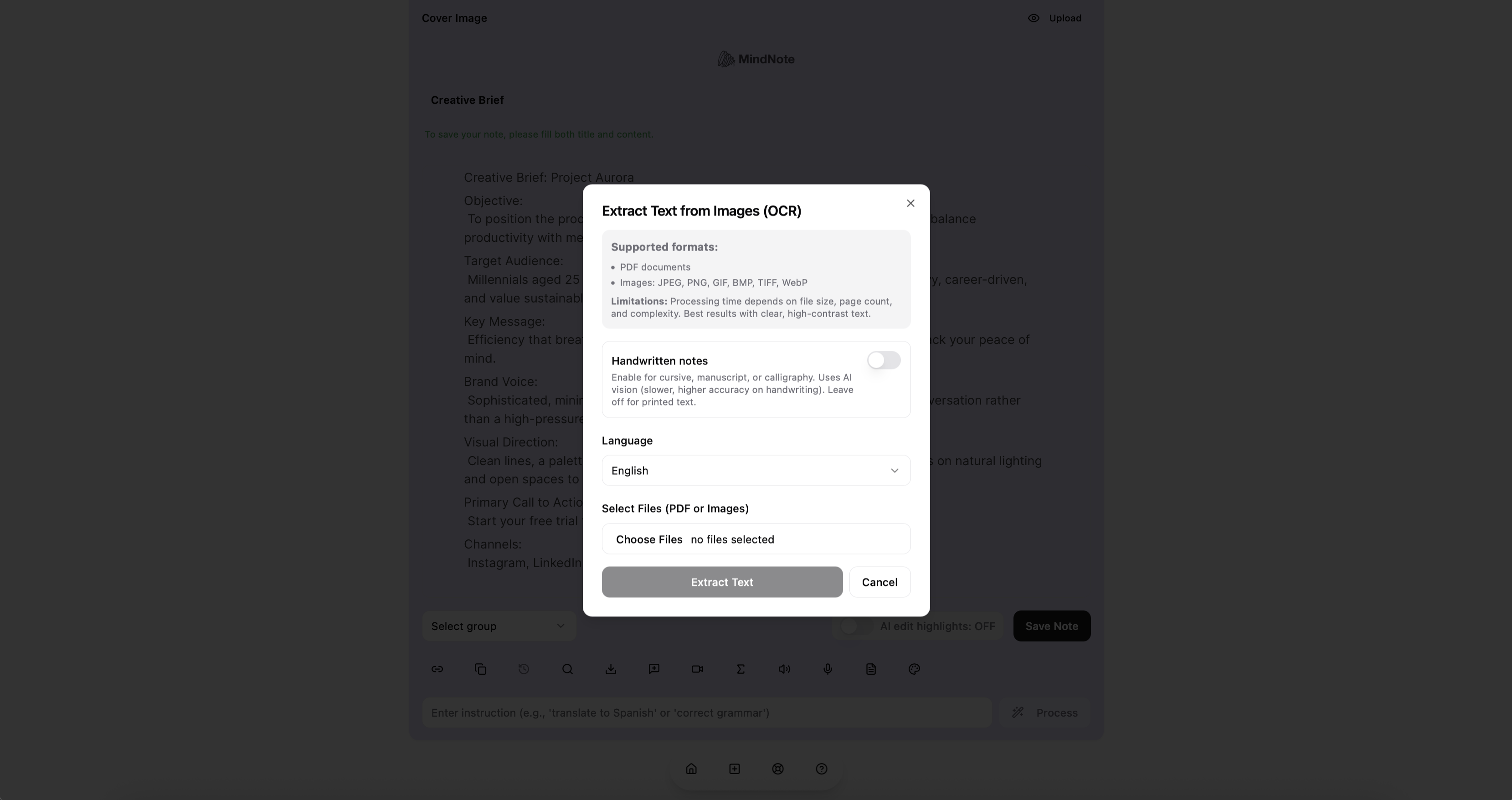
Quick answer: To extract text from an image, use an OCR (optical character recognition) tool: upload or photograph the image, let the software detect the words, then copy, edit or search the resulting text. In MindNote, image-to-text places the extracted text straight into your note, where you can clean it up, translate it or summarize it with an AI prompt.
The text is right there. Why can’t you copy it?
A screenshot of an error message. A photo of the whiteboard after a strategy session. A supplier’s invoice. A slide from someone else’s presentation. A business card. A scanned contract.
All of them contain words you need, and none of them let you select, search or paste those words. Retyping is slow and error-prone. OCR solves the problem in seconds.
What OCR is, in plain words
OCR stands for optical character recognition. Software looks at an image, finds areas that contain text, recognizes the characters and outputs them as real, editable text. The technology has existed for decades; open-source engines such as Tesseract made it widely available, and modern AI models have made it far better at messy, real-world images, including photos taken at an angle and some handwriting.
The difference today is what happens next. Old OCR gave you a block of raw text. AI-powered tools can tidy it, structure it into lists or tables, translate it and summarize it.
How to extract text from an image with MindNote
- Open a note where you want the text to land.
- Choose image-to-text from the toolbar.
- Upload an image or take a photo: screenshot, scan, whiteboard, receipt or slide.
- Review the extracted text that appears in your note.
- Clean it up with a prompt, for example: “Fix line breaks and turn this into a bulleted list” or “Format this as a table with columns Item, Quantity, Price.”
- Use it: search it later, share the note by link, or export as Word, PDF or Excel.
Team use cases
| Image | Team | What to do with the text |
|---|---|---|
| Whiteboard after a workshop | Product, strategy | Turn into an action list and share with attendees |
| Screenshot of an error or log | Engineering, support | Paste exact error into the ticket |
| Invoices and receipts | Finance, small business | Extract totals and dates into Excel |
| Business cards | Sales | Add contact details to the CRM |
| Printed handouts or slides | Everyone | Make them searchable alongside meeting notes |
| Scanned contracts | Legal, procurement | Search clauses; listen to them as audio |
| Foreign-language signage or documents | Global teams | Extract, then translate with a prompt |
| Competitor ads or packaging | Marketing | Collect claims and messaging |
How to get accurate results
- Light it evenly. Shadows across a page are the most common cause of errors.
- Shoot straight on. Hold the phone parallel to the page or board.
- Fill the frame. Crop out the desk and the background.
- Use high contrast. Dark ink on light paper works best; erase old whiteboard ghosts.
- Check numbers. OCR can confuse 0 and O, 1 and l, 5 and S. Verify amounts and codes.
- Handwriting varies. Neat print works well; fast cursive may need corrections.
OCR + AI: what you can do after extraction
- “Translate this text into English and keep the original formatting.”
- “Summarize this scanned report in five bullets.”
- “Extract every date and deadline into a list.”
- “Turn this whiteboard text into a project plan with owners.”
- “Correct obvious OCR mistakes but don’t change any numbers.”
You can also listen to the extracted text with text-to-speech, useful for long scanned documents.
Privacy reminders
Images often contain more than you notice: names, account numbers, faces, other people’s emails in a screenshot. Crop out what you don’t need before uploading, avoid capturing payment card numbers or ID documents unless necessary, and share notes by private link. MindNote’s approach to data is described on the MindNote Trust Center.
Sources
- Tesseract OCR, open-source OCR engine
- MindNote, Trust Center
Stop retyping. Try image-to-text in MindNote.
Try MindNote free. Write, dictate, transcribe meetings, and organize your notes with AI.
Get startedFrequently asked questions
How do I copy text from a picture?
Use an OCR tool. In MindNote, upload the image with image-to-text and the words appear as editable text in your note.
Can OCR read handwriting?
Modern OCR handles neat handwriting reasonably well. Messy handwriting may need manual corrections.
Can I extract text from a screenshot?
Yes. Screenshots are ideal for OCR because the text is usually sharp and high-contrast.
Can I turn an image of a table into Excel?
Extract the text, ask the AI to format it as a table, then export the note to Excel.
Is OCR accurate?
On clear, well-lit images it’s highly accurate. Always double-check numbers and codes.